How To join CoinlimitX
If you want to join our Minecraft server check this .. and dont forget to join our discord server
IP | coinlimit.coldsmp.xyz
Port | 25565
connection ID: 6113620036931323840851235c32a389634a5baea27b56cf89
Java edition
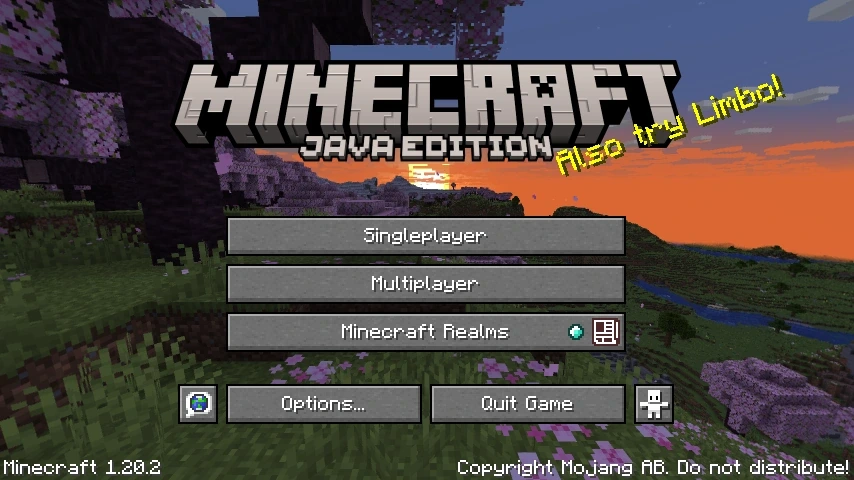
- Open Multiplayer: Launch Minecraft Java Edition and click Multiplayer.
- Add Server: Click the Add Server button at the bottom.
- Enter Details: Type CoinlimitX in the Server Name field.
- Server IP: Enter the official server IP address.
- Save & Connect: Click Done, select the server, and click Join Server
Bedrock edition
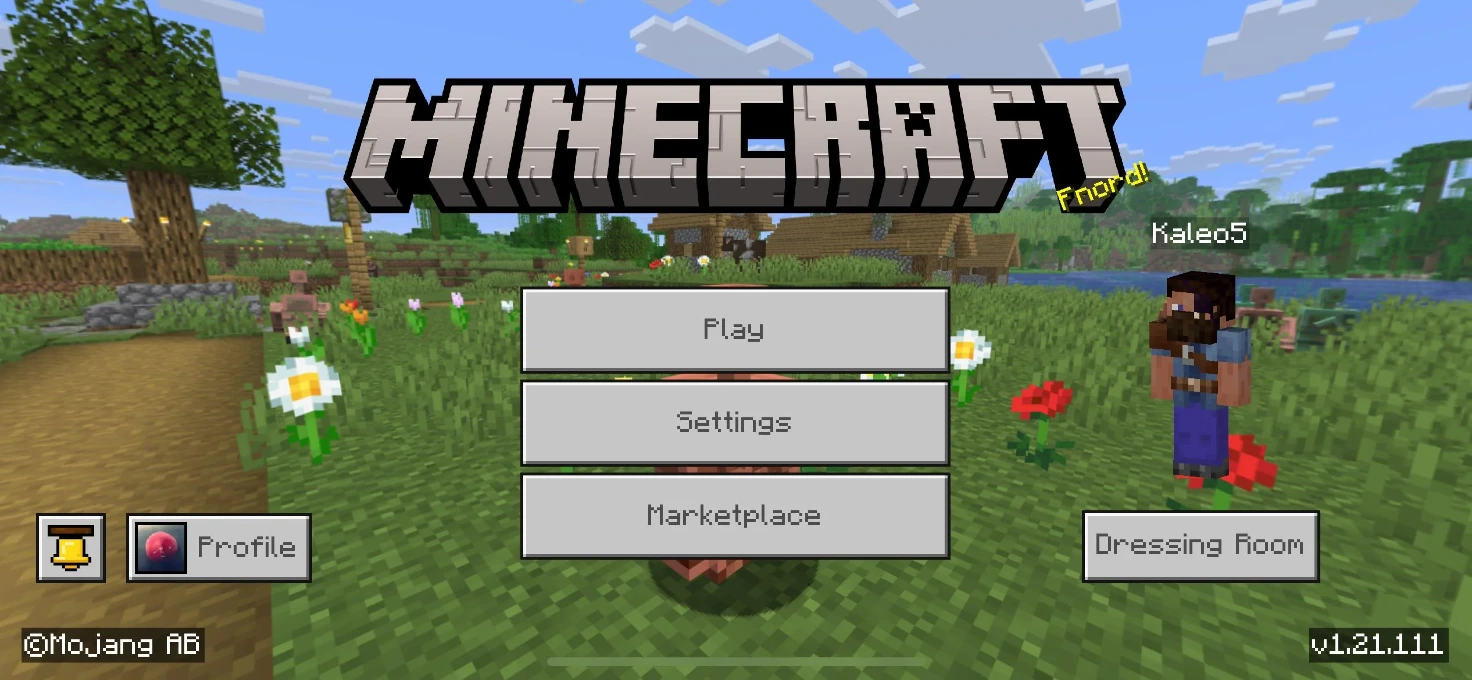
- Open Play Menu: Launch Minecraft and click the Play button.
- Go to Servers: Navigate to the Servers tab on the top right.
- Add Server: Scroll down to the bottom and click Add Server.
- Enter Details: Type CoinlimitX for the Server Name.
- IP & Port: Enter the Bedrock server IP and the specific Port number.
- Save & Play: Click Save or Play to connect instantly.
Education edition
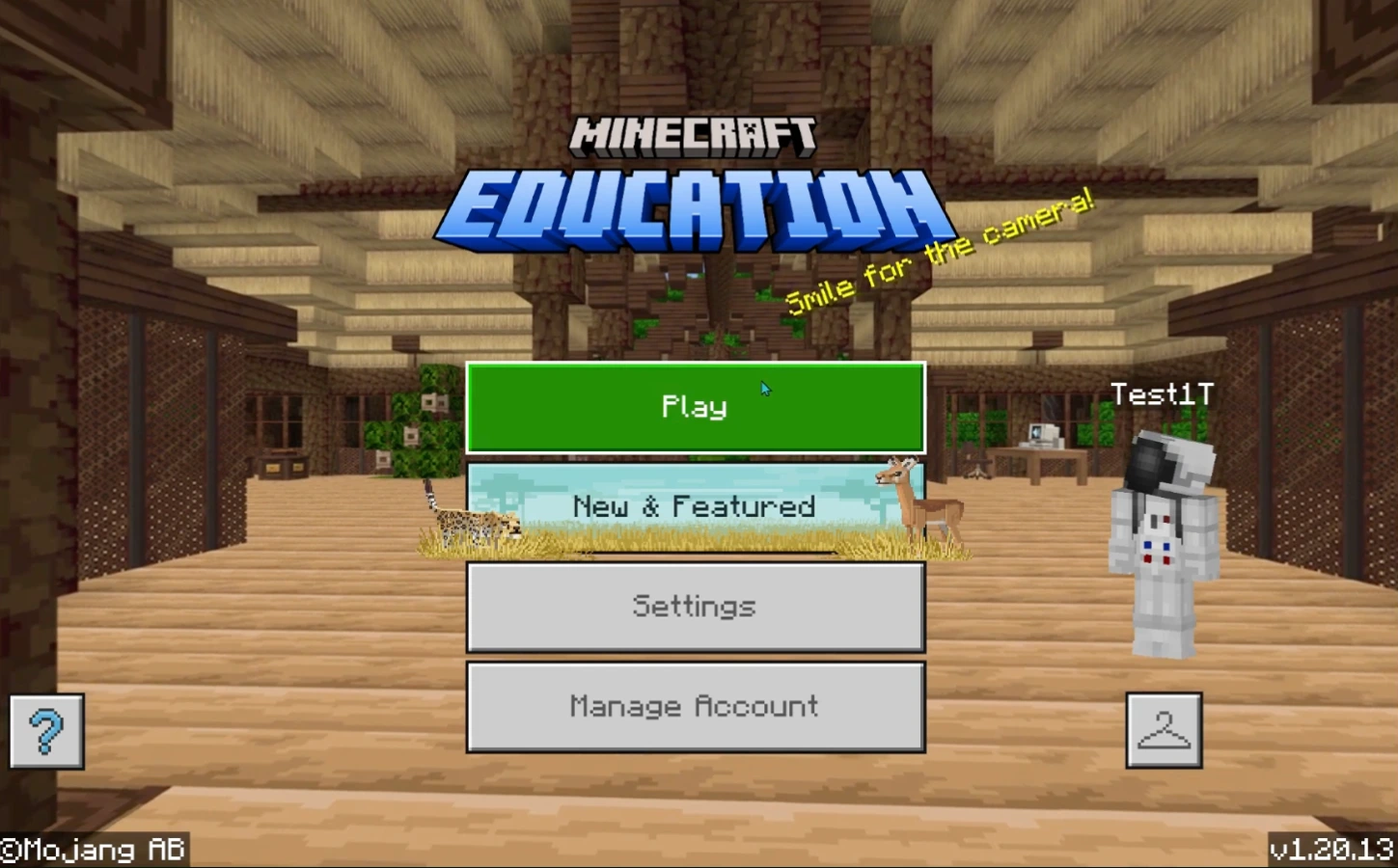
- Launch the Game: Open Minecraft Education Edition and log in.
- Play Menu: Click the Play button on the main screen.
- Join World: Select the Join World option.
- Enter the ID: Type the Connection ID (alphanumeric text or words) into the designated field.
- Confirm Connection: Click the Confirm button to link directly into the server.
Get Free Rank of CoinlimitX
Staff rank
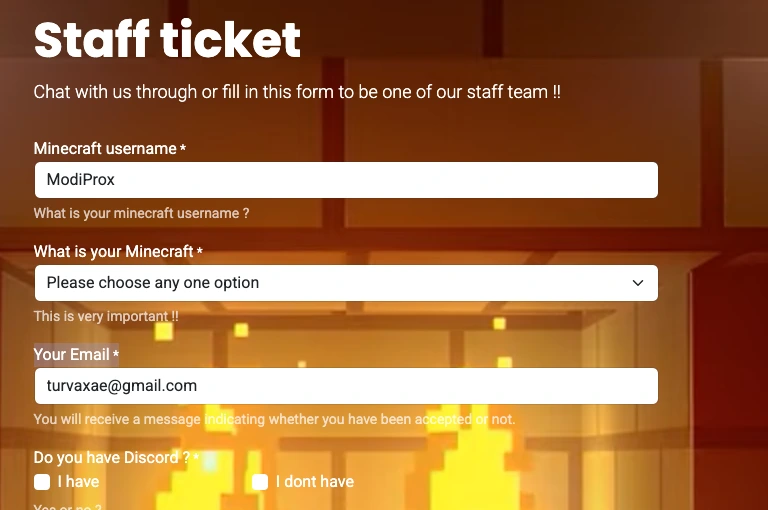
To officially claim a Free Rank on our website, you must first navigate to the main Menu located at the top of the user interface and head directly to the Customer Support section. Once inside, select the Staff Ticket system to open a new application form, and begin filling out all the required information accurately and carefully. Be sure to provide a comprehensive and convincing explanation detailing why you deserve this rank and what unique value or benefits you can contribute to our community. As soon as you finish writing the details, press the submit button so our administration team can review and evaluate your ticket, and get back to you with an approval or rejection as shortly as possible.
Here is the 10-line step-by-step guide in English, with clean spacing for your website users:
- Step 1: Go to the website homepage and log into your personal account.
- Step 2: Navigate to the main Menu located at the top of the webpage.
- Step 3: Click on the Customer Support option from the dropdown list.
- Step 4: Select the Staff Ticket section to open a new support request.
- Step 5: Wait for the ticket system to load the official rank application form.
- Step 6: Fill out all the required fields and specify your desired Free Rank.
- Step 7: Write a clear reason explaining why you deserve this specific rank.
- Step 8: Double-check all entered information to ensure there are no mistakes.
- Step 9: Click the Submit button to send your ticket directly to our system.
- Step 10: Wait patiently for the administration team to review your request and reply.
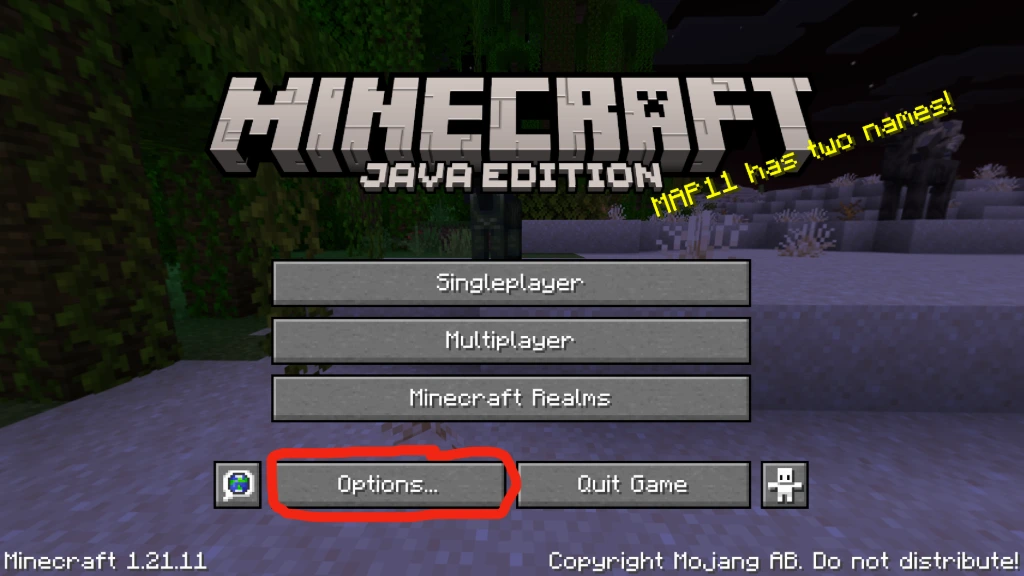
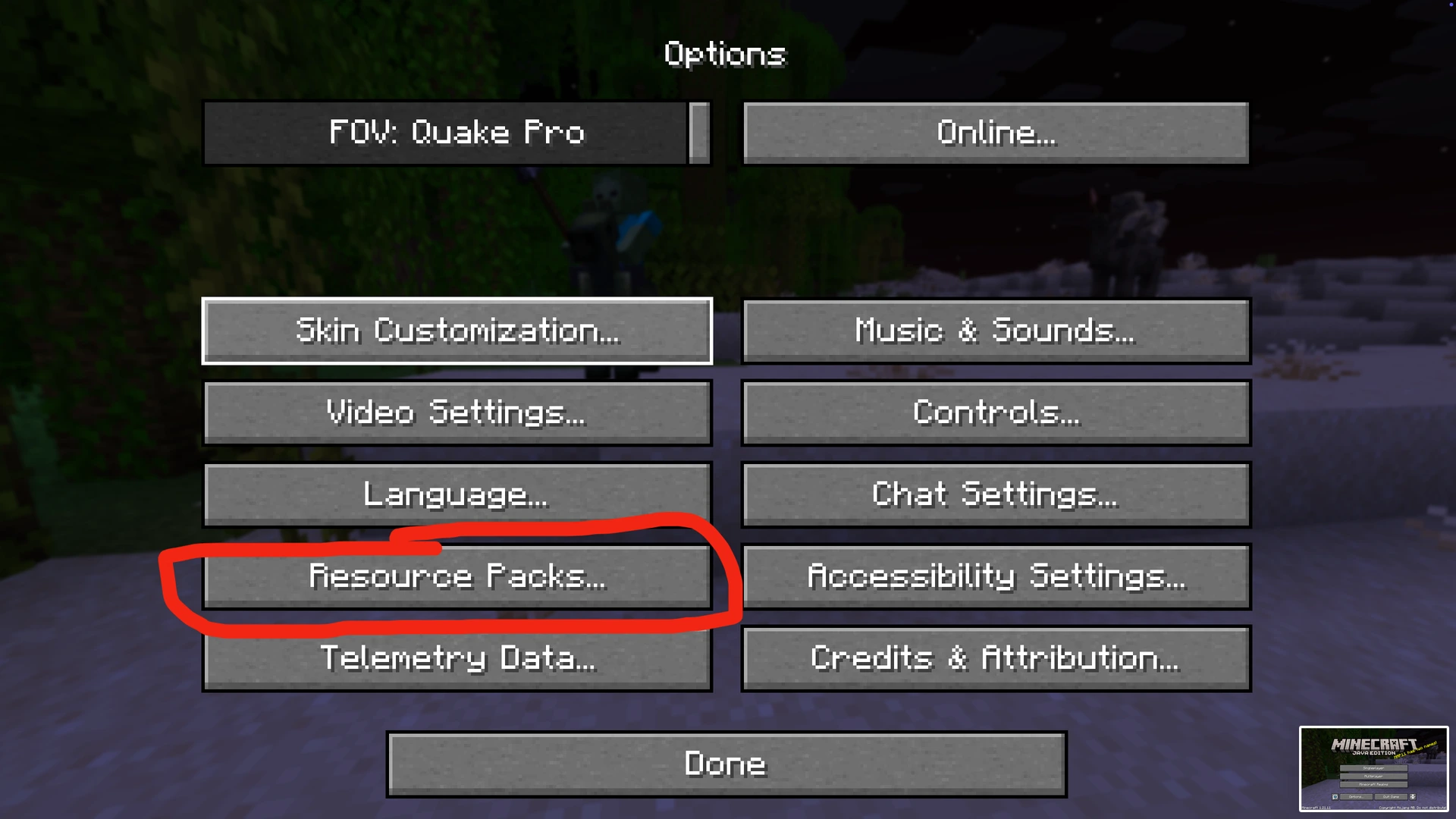
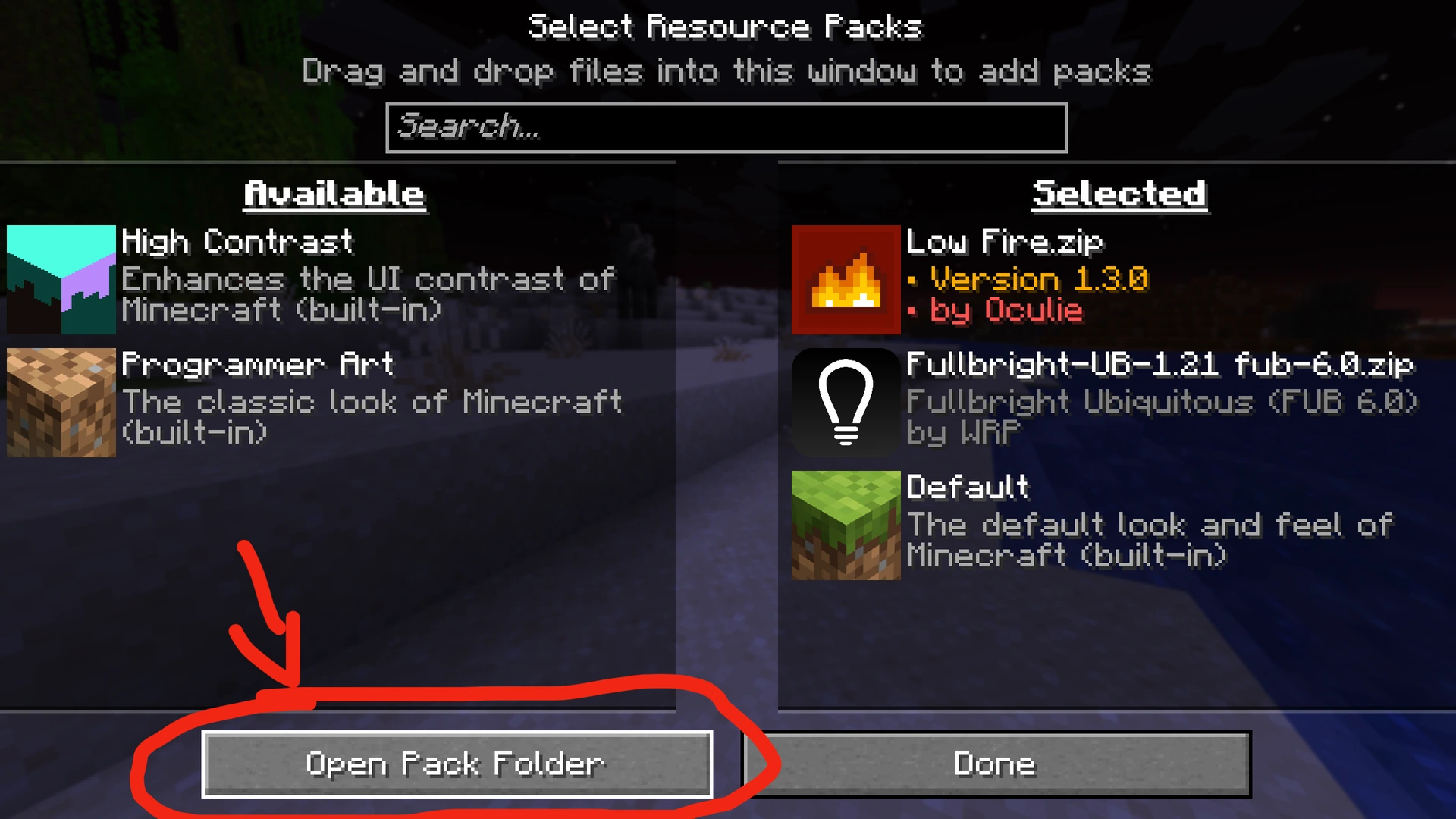
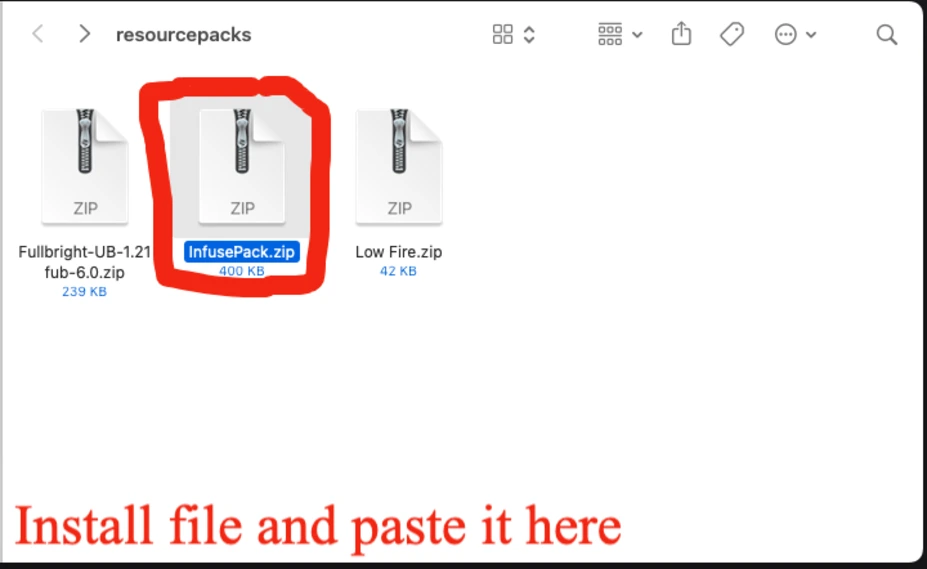
How to install the resource pack
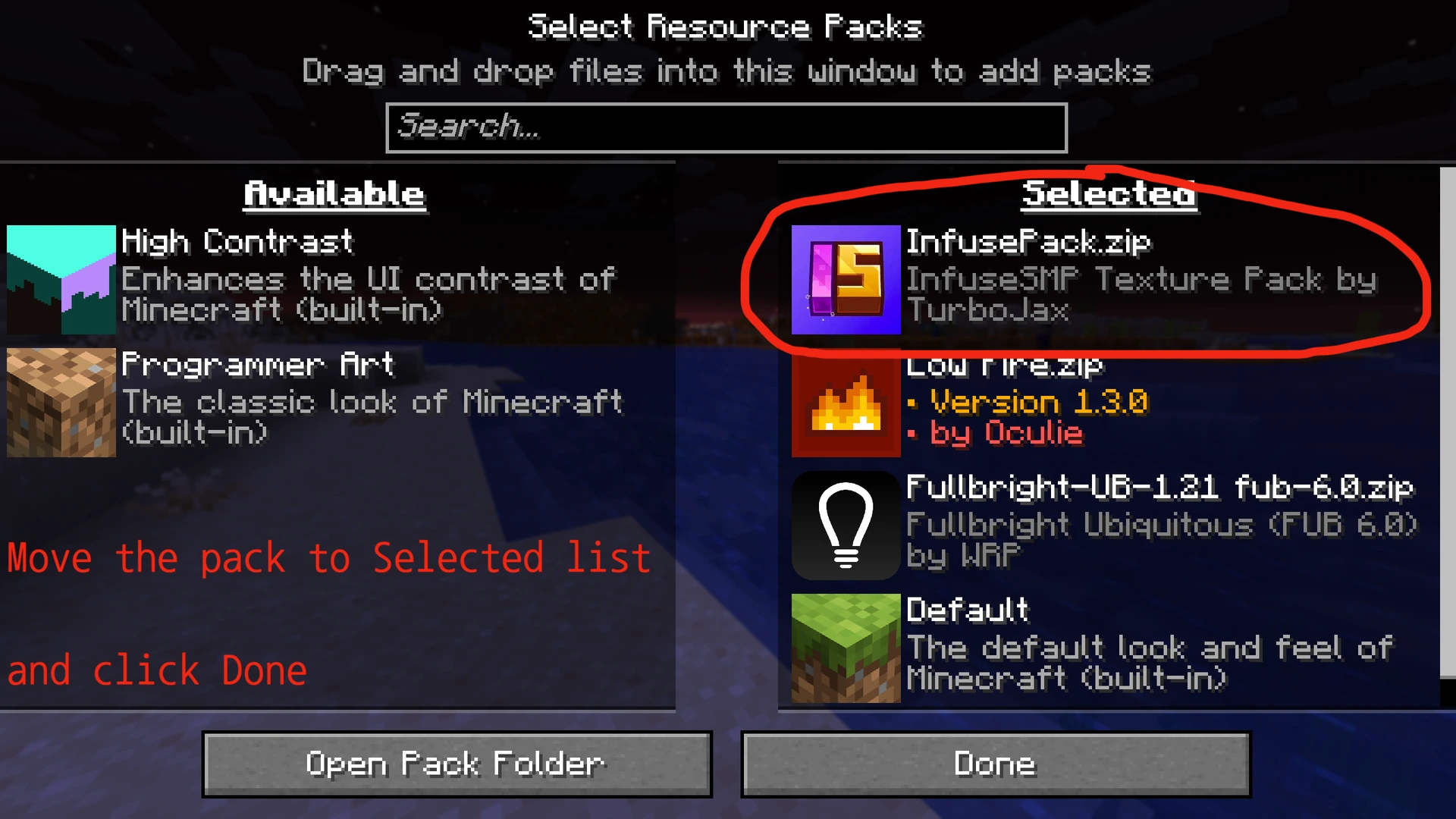
Install infuse
if you want to install the file please click here
setup infuse